Armbian Imager 2.5 is out
Armbian Imager 2.5 sets up your board from a few simple questions, double-checks your storage before it writes, and now speaks Greek and Serbian.

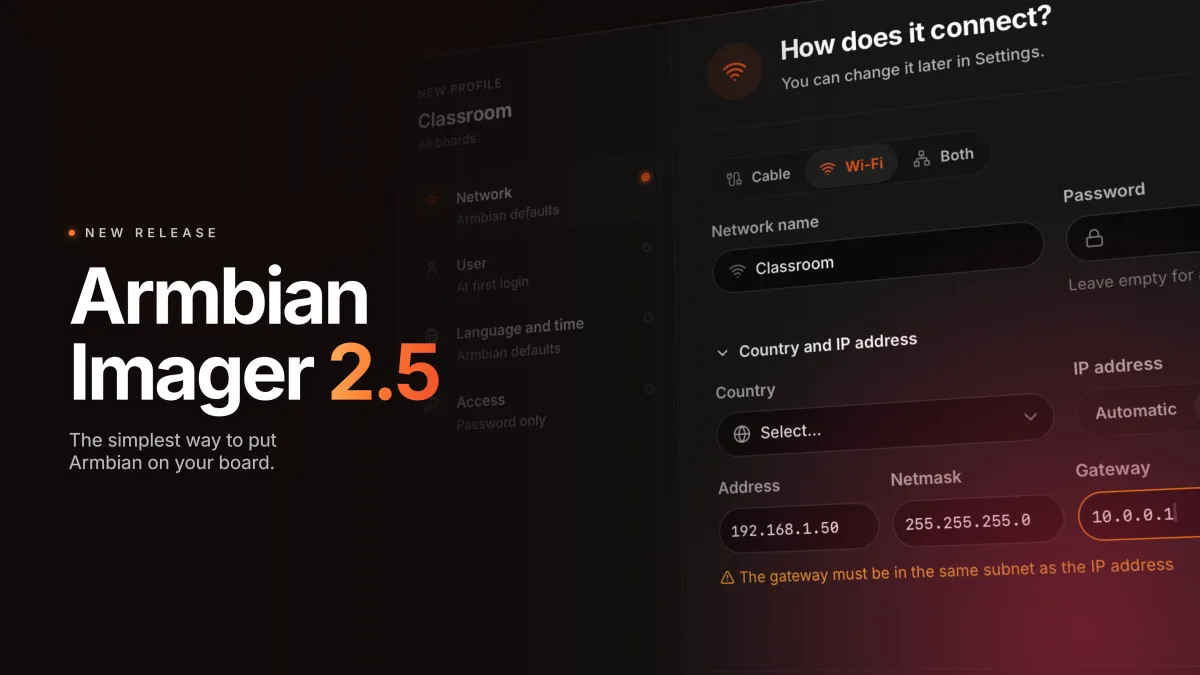
The easiest way to get Armbian onto your board just got easier. In Armbian Imager 2.5, you set up a board by answering a few simple questions, and Imager double-checks your storage right before it writes. Settings now has a page of its own, and the app speaks Greek and Serbian too.
Armbian Imager 2.5 in four minutes: the real app, from start to finish.
Set up your board with a few answers
A first-boot profile writes your network, user account, SSH keys, language and time zone onto the card, so the board is ready to use the moment it boots. In 2.5, New profile walks you through setup one question at a time: how the board connects, who logs in, which language and time zone to use, and how you sign in. Skip whatever you don’t need. Your answers build up in a column next to the questions, so you always see what the profile will do.
Imager also catches the mistakes that are hardest to track down on a board with no screen. If you type a static address that can’t work, like your subnet’s broadcast address or a gateway outside the subnet, Imager tells you while you type. Add SSH keys from GitHub, GitLab or a link, and Imager fetches them and shows you which keys it found. A typo in a user name shows up right there, not after your first failed login.
Profiles also fit more naturally into the rest of the app:
- Use one profile for every board, or only for the boards you pick.
- Choose a profile from a menu just before you write. Icons show Wi-Fi or cable, user, time zone and keys at a glance.
- Use profiles with Armbian images you build yourself.
- A board with no screen and no network no longer gets stuck at first login asking “Connect via wireless?”. The profile answers for it.
- Pick any Wi-Fi country that Linux’s wireless regulatory database accepts.
One last check before anything is erased
Just before it writes, Imager checks the target one more time. It only writes to a writable disk it found itself, at the exact size you confirmed. Swapping cards while the password prompt is open can’t send the image to the wrong one. If the image is too big for the storage, or the file is empty, Imager stops before erasing anything. And if a device can’t be used, Imager tells you why, in your language.
You can now cancel at any stage, even while the image is still being prepared. When the write finishes, the last screen tells you what you wrote to: an SD card, a USB drive or a disk. For Qualcomm boards in EDL mode, Imager matches the board you selected by its serial number, so it writes to that board and no other.
A nicer app all round
Settings get a page of their own: The gear icon now opens a full page with five sections: General, Writing, First-boot profiles, Downloads and storage, and About and support. Each section has a small animation that reacts to its settings. The General scene changes with your theme, and the Downloads scene shows when you’re offline. Change the theme or reduce motion, and you see the result before you save.
More room on the home screen: The page numbers under the manufacturer and board grids are now a small glass pager. It floats over the cards and opens when you point at it, so the grid gets the whole window. Board names are no longer cut short, and vendor logos keep their colors.
Twenty languages: Imager now speaks Greek and Serbian, which brings it to twenty languages. The first time you open it, it starts in your system’s language.
Help when something goes wrong: If Armbian’s servers don’t respond, Imager says so and gives you a Retry button. Upload Logs sends this session’s log to paste.armbian.com and gives you a link to add to your bug report, plus a QR code if you’d rather grab it on your phone. If a Settings section can’t load, it tells you. Checksum, verification and decompression errors now come with a plain-language explanation.
Updates in the background: When a new version is out, you’ll see it in the sidebar and under About and support in Settings. Click Install and the update downloads in the background while you keep working. Click Restart Now when you’re ready. If a write is in progress, the restart waits until it’s done.
Under the hood
Debug builds include a scenarios panel that simulates SD cards, USB drives, EDL boards, write errors and network failures. That’s how we filmed the video above: every shot is the real app, and not a single real card was erased. Every release build is checked to make sure none of that code ships. CI now also audits dependencies and checks the Windows code.
Thank you
Special thanks to Superkali, the main developer behind this application, for doing the heavy lifting and driving most of the improvements. Thanks also to Emmanouil C. for reviewing the Greek translation, Aleksandar D. for reviewing the Serbian translation, Igor P. for improving static IP checks and fixing the wireless prompt, Cyrus Ho for adding missing Wi-Fi country codes, and Xavier S. for displaying the device type on the final screen.
Get it
Armbian Imager 2.5 is out now for Mac, Linux and Windows, free and open source. Already running 2.0 or later? Imager will offer you the update.