Your whole smart home, on a new board, before the coffee gets cold

We moved our Home Assistant to a bigger board, and nothing needed re-pairing
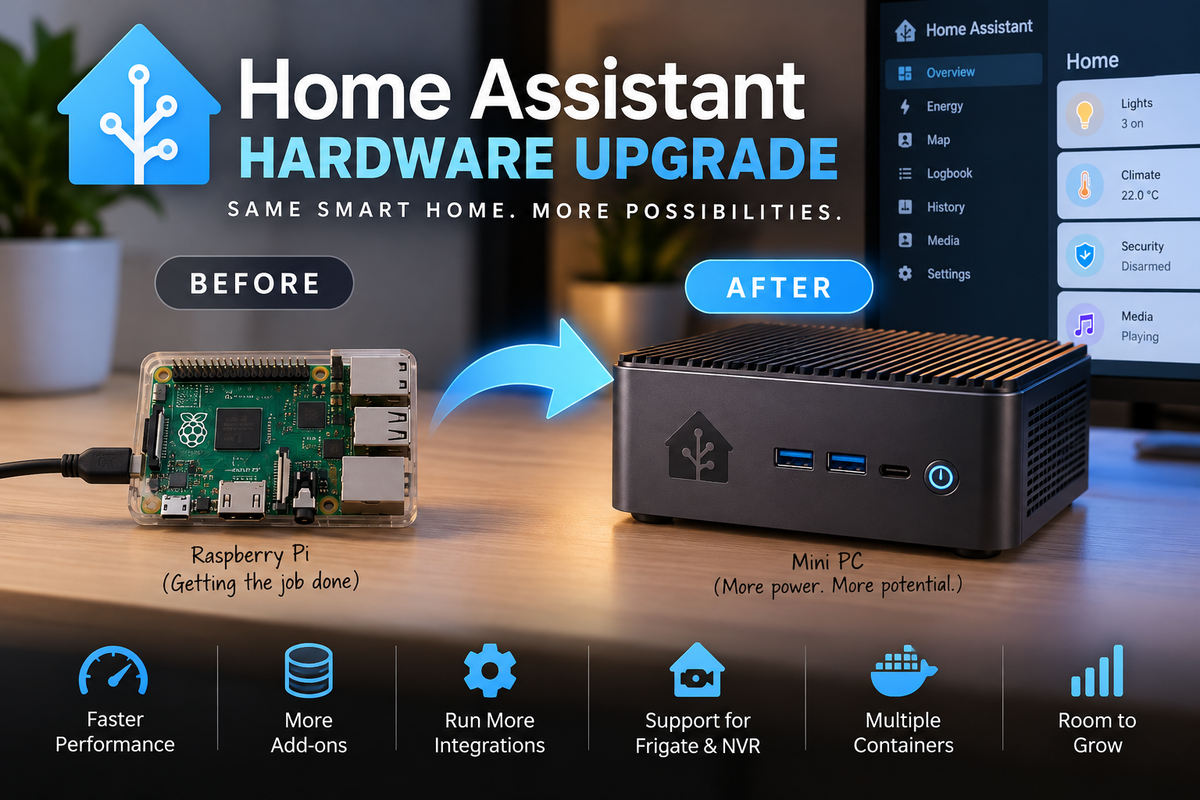
Our house runs on Armbian, and it has for years. Its Home Assistant setup started on an Allwinner H5 NanoPi K1 Plus. In 2025, it moved to the Rockchip NanoPi R3S LTS as soon as that board came out. This month it moved again, to the NanoPi M6.
It was a live install: a Z-Wave mesh, a Zigbee network, a pile of automations and years of history. We expected at least one evening of re-pairing sensors. It took about half an hour, and every device came back on its own.
| Before: NanoPi R3S LTS | After: NanoPi M6 V2 | |
|---|---|---|
| SoC | Rockchip RK3566 | Rockchip RK3588S |
| CPU | 4 × Cortex-A55 | 4 × Cortex-A76 + 4 × Cortex-A55 |
| RAM | 2 GB | 8 GB |
| Storage | 32 GB eMMC | 64 GB eMMC, NVMe slot free |
Both on Armbian trixie with Home Assistant Supervised.
The R3S served us well, but the M6 is a big step up. Its Cortex-A76 cores and four times the memory mean dashboards open faster, history loads quicker, and there’s room for more apps. Everything runs from the 64 GB on-board eMMC for now, so the NVMe slot is free for later.
The whole move, by the numbers: one backup file, one armbian-config entry, zero re-paired devices, about 30 minutes end to end.
Why it’s this easy
Two things do the heavy lifting.
First, a Home Assistant backup holds the whole house: configuration, dashboards, automations, history and installed apps. Armbian runs the same Supervised stack on every board it supports, so the backup doesn’t care what hardware it’s restored onto.
Second, your Z-Wave and Zigbee networks live on the USB sticks, not on the computer. Move the sticks and the devices follow.
The move, step by step
1. Take a backup on the old device
Go to Settings → System → Backups, create a full backup, and download the .tar file to your computer.
2. Put Armbian on the new board
Download the Armbian Debian Trixie minimal image for your board from armbian.com, write it to an SD card or eMMC, and boot. Home Assistant Supervised on Armbian only works on Debian Trixie, so don’t pick Ubuntu or another Debian release.
3. Give it a fixed IP address
Your phones, dashboards and automations expect Home Assistant at an address that doesn’t change. Set a static IP in armbian-config, as described in Network settings. You can also edit Netplan by hand using the networking guide, or set a DHCP reservation on your router.
If you want everything to keep working as before, reuse the old device’s address. Just switch the old device off first so the two don’t fight over it.
4. Install Home Assistant with armbian-config
Open armbian-config → Software → Home Automation and pick Home Assistant. Or do it in one line:
armbian-config --cmd HAS001The installer sets up Docker, the Supervisor and the OS agent, then waits until the web interface responds. Reboot when it asks.
5. Plug in your USB radios
Move the Z-Wave and Zigbee sticks from the old device to the new one before you restore. That way the apps find their hardware the first time they start.
6. Upload the backup
Open http://<board-ip>:8123. On the welcome screen, choose to restore from a backup and upload your .tar file. The restore runs in the background. When Home Assistant restarts, reload the page and log in with your usual account.
That’s it. Your house is back.
The radios just work
Home Assistant finds USB sticks by their stable names under /dev/serial/by-id/. Those names come from the stick itself, not from the board, so they’re identical on the new machine. In our move:
- Aeotec Z-Stick Gen5: Z-Wave JS connected, and every node reported ready.
- Sonoff Zigbee 3.0 Dongle Plus: ZHA picked up the network with every device in place.
Forgot to plug a stick in first? No harm done. Plug it in now and restore just that app from the same backup:
ha backups restore <backup-slug> --app core_zwave_jsA couple of finishing touches
- Take a fresh backup on the new board once everything is running, so your next move starts from here.
- Check your custom integrations. If you use HACS or other custom components, make sure they loaded, and reinstall any that are missing.
A note on support: the Supervised installation method is maintained by the Armbian team and isn’t officially supported by the Home Assistant project. Hardware questions go to the Armbian forum. Application issues you can also reproduce on the official Home Assistant OS go to the Home Assistant community.